How to remove a white background from an image
A logo saved as a JPG, a signature photographed on paper, a scanned stamp: they all come with a white box around them. Here’s how to remove the white background and get a transparent PNG with smooth edges and no white outline, on any device.
By the EraseMyBG team · Updated October 7, 2026 · 10 min read
Quick answer
To remove a white background from an image, use a color-to-alpha tool that turns white into transparency, then save the result as a PNG. On a Mac, Preview’s Instant Alpha works for simple graphics, and EraseMyBG’s Remove White mode handles logos, signatures and scans with smooth, fringe-free edges. In GIMP, use Colors › Color to Alpha; in PowerPoint, Set Transparent Color.
- White backgrounds need a color key, not a subject detector: there’s no “subject” in a logo or signature.
- Save as PNG. A JPG puts the white straight back.
- Photographed paper is never pure white: raise the tolerance to clear shadows.
- White products on white are the exception: use AI subject detection.


Drag to compare: a phone photo of a signature, and the transparent PNG made with EraseMyBG’s Remove White.
Why white backgrounds need a different tool
Most background removers, including the ones built into macOS, Windows and iPhone, look for a subject: a person, a pet, a product. That works for photos. But a logo, a signature or a line drawing on white paper doesn’t have a subject in that sense, so AI removers often cut letters in half, drop thin lines, or keep the whole sheet.
What works instead is a color key: tell the tool which color is the background (white), and it makes that color transparent everywhere. The difference between a good and a bad color key is what happens at the edges. Text and shapes are anti-aliased: their outer pixels are a blend of ink and white. A simple threshold, like a magic wand, either keeps those pixels with their white tint or deletes them, which leaves a white fringe (or halo) that shows up as soon as you put the logo on a dark background. A proper color-to-alpha conversion works out how much of each edge pixel was white, removes exactly that much, and keeps the pure ink color.

Which method should you use?
| What’s on the white background | Best approach | Tools |
|---|---|---|
| Logo, icon, clip art | Color-to-alpha (white to transparent) | EraseMyBG Remove White, GIMP Color to Alpha, Photoshop Blend If |
| Signature or handwriting | Color-to-alpha with higher tolerance | EraseMyBG Remove White, GIMP |
| Scanned stamp, sketch, diagram | Color-to-alpha | EraseMyBG Remove White, GIMP, Preview Instant Alpha |
| Flat graphic with one exact white | Single-color transparency | PowerPoint Set Transparent Color, Preview Instant Alpha |
| Product or person on a white backdrop | AI subject detection | EraseMyBG Find Subject, macOS Remove Background, Windows Paint |
| White or light product on white | AI subject detection only | EraseMyBG Find Subject (never a color key) |
How to remove a white background on a Mac
With EraseMyBG’s Remove White (logos, signatures, scans)
- Open the image. Drag the JPG, PNG, HEIC or TIFF onto EraseMyBG, or paste it with ⌘ V.
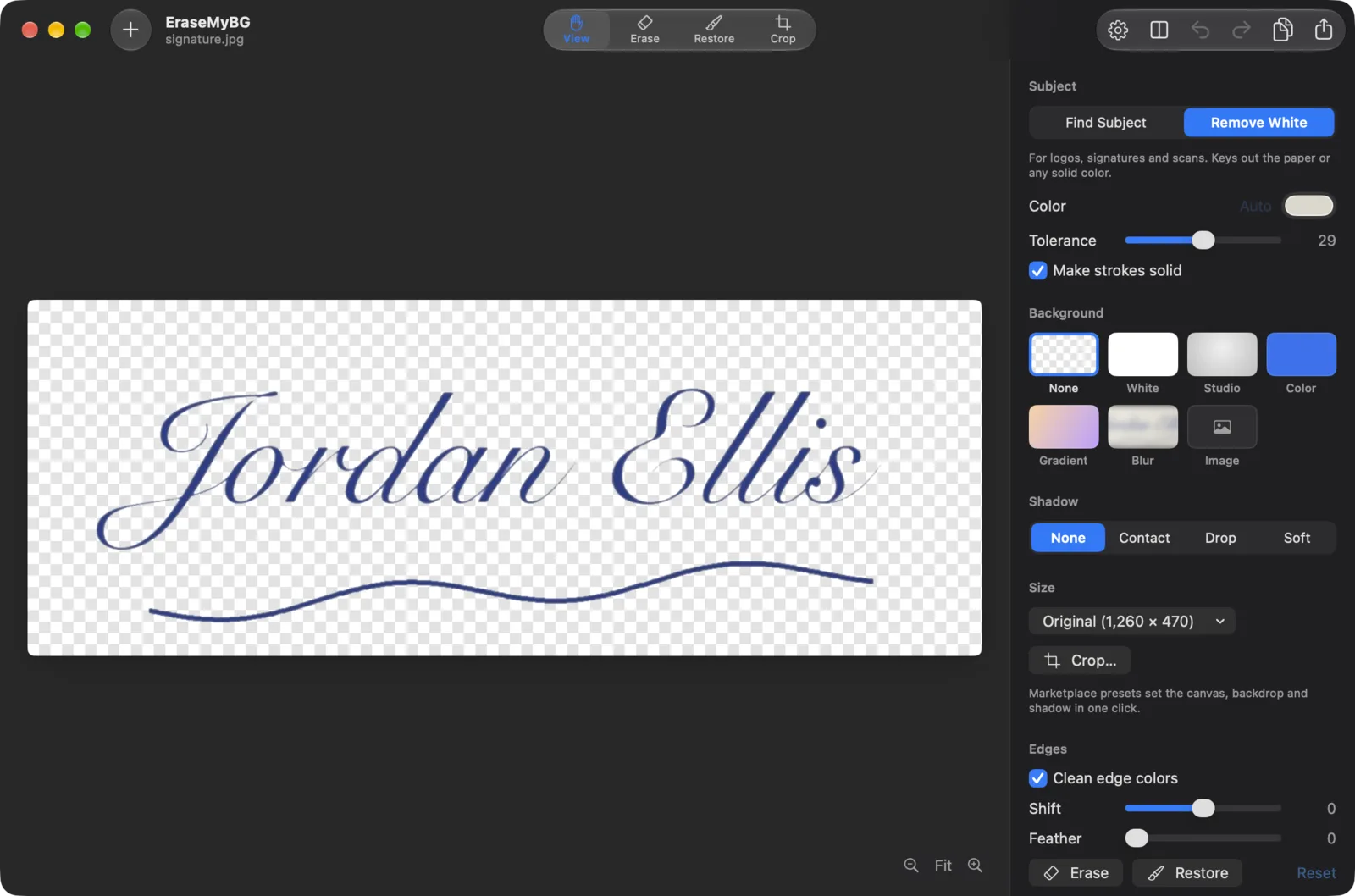
- Under Subject, choose Remove White. It reads the paper color from the image border, so off-white, cream and grey scans work too. You can also pick any other solid color.
- Adjust Tolerance. Raise it until shadows, paper texture and JPEG noise disappear. Tick Make strokes solid for logos with flat colors, so lighter shades don’t turn see-through.
- Export as PNG. Leave Background on None and click Export. The PNG keeps full resolution, or press ⌘ C to paste it straight into Keynote, Pages, Figma or a PDF editor.
With Preview’s Instant Alpha (free, built in)
- Open the image in Preview and click the Markup button (the pen icon).
- Choose Instant Alpha (the magic-wand icon) and drag across the white area. Dragging further selects more shades of white.
- Press Delete. Repeat for white areas enclosed inside letters such as O, A and e.
- Save. If the file is a JPG, Preview asks to convert it to PNG; accept.
Instant Alpha is a threshold selection, so expect a thin white edge on dark backgrounds. For photos of people or products on white, Preview’s Tools › Remove Background (macOS Ventura or later) is the better built-in choice; our guide to making an image transparent on a Mac covers it step by step.
How to remove the white background from a logo
Logos are the most common reason people need to remove white from an image: you were sent a JPG, and it sits in a white box on every dark slide, website header or product label. To make the logo transparent:
- Start from the largest version you have. A tiny logo has blurry edges that no tool can sharpen.
- Use Remove White (or GIMP’s Color to Alpha) rather than an eraser, so curves and small type keep smooth edges.
- Turn on Make strokes solid if the logo uses flat colors.
- Check it on a dark background before you save. That’s where a fringe shows.
- Export as PNG, and keep the original JPG as a backup.



How to remove the background from a signature
A transparent signature lets you sign contracts, invoices and letters digitally without the white rectangle that covers the signature line. Getting a clean result starts before you open any software.
1. Photograph or scan it well
- Sign on plain white paper with a dark pen (black or dark blue). Thin, light pencil strokes are hard to separate from paper.
- Use even daylight, no direct lamp, and hold the phone flat above the page so your hand doesn’t cast a shadow. A scanner or the Notes app’s document scanner is even better.
- Fill most of the frame with the signature and crop close before removing the background, so the edge of the page, the table and printed lines aren’t part of it.
2. Remove the white and the paper shading
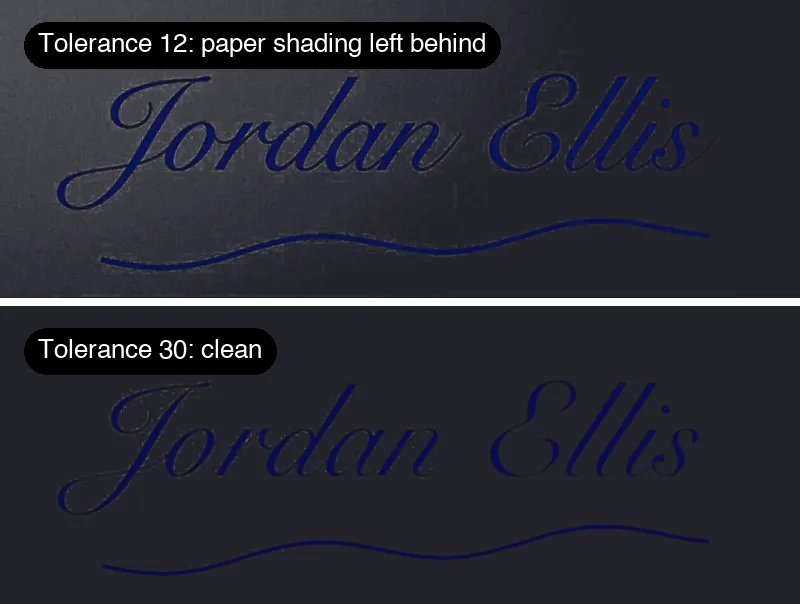
Photographed paper is never pure white: one corner is darker, and there’s grain. Use Remove White, then raise Tolerance until the grey haze disappears. Stop as soon as it does, because pushing it much further starts to thin the lightest parts of the ink. Make strokes solid keeps ballpoint lines fully opaque.
3. Save it as PNG and place it
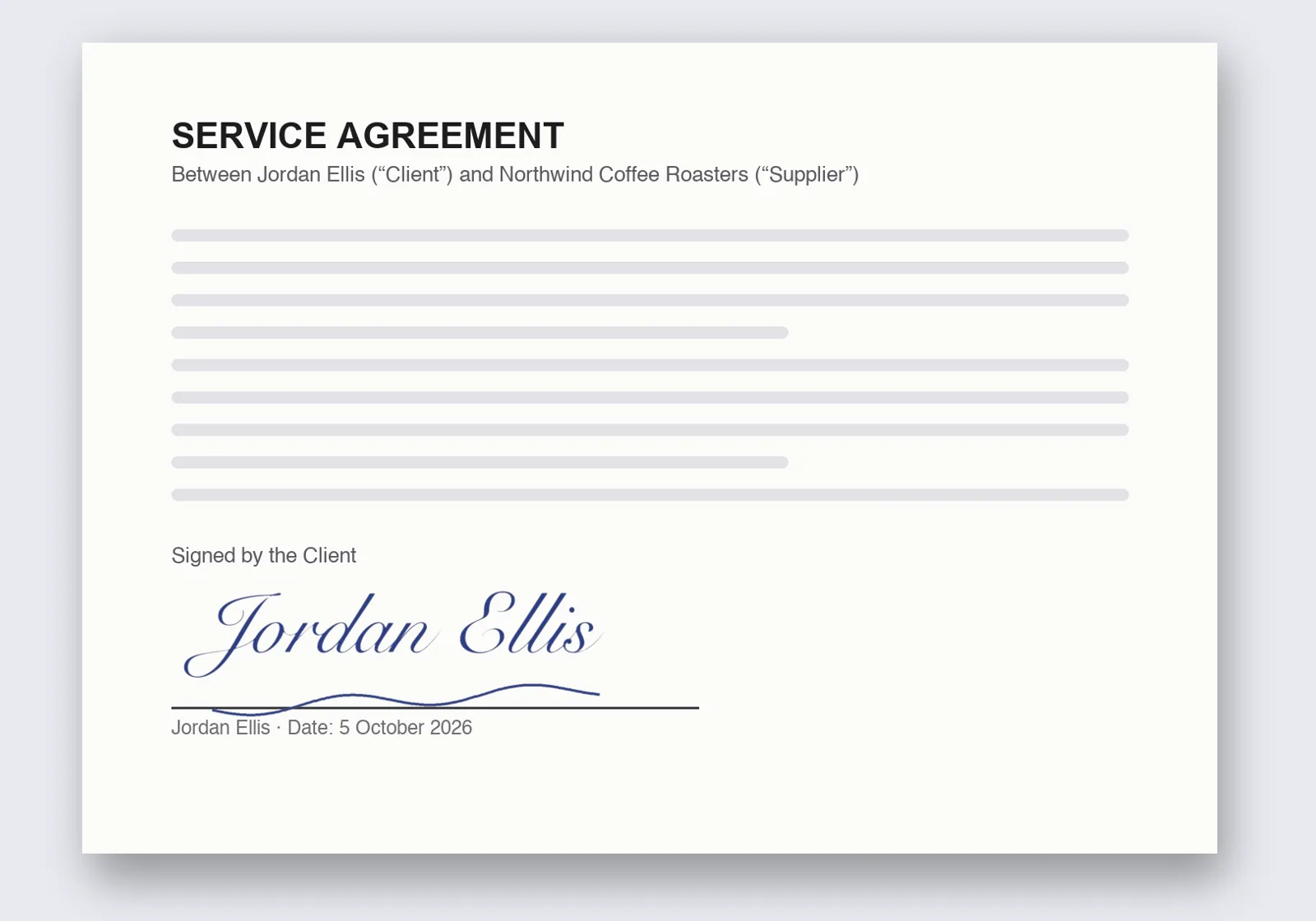
Export a transparent PNG and keep it somewhere safe. Most document tools accept it: insert it as an image in Word, Pages or Google Docs, or add it as an image in your PDF editor, then set it to sit in front of the text so the signature line shows through.
Scans, stamps, sketches and diagrams
Rubber stamps, hand-drawn sketches, whiteboard photos and printed diagrams all behave like signatures: ink on a light background. The same steps apply. Scan at 300 dpi or more, crop, remove the white with a color-to-alpha tool, then raise tolerance to clear the paper. For colored paper, pick the paper color instead of white; Remove White detects it automatically from the border.
White products on a white background: don’t use a color key
Here’s the one case where a white background remover is the wrong tool. A white watch, sneaker or mug photographed on a white backdrop is made of the background color, so a color key removes the product along with the background. Use AI subject detection instead (Find Subject in EraseMyBG): it recognises the object’s shape and keeps it, whatever its color.

For marketplace listings that require a pure white background (Amazon, for example), that’s the opposite job: cut out the product, then add a clean white background.
How to remove a white background on Windows
- Paint (Windows 11): open the image, click Remove background in the Image group, then File › Save as › PNG picture. It’s subject detection, so it suits photos better than thin logos.
- PowerPoint or Word: select the picture, choose Picture Format › Color › Set Transparent Color, and click the white. It removes only that one exact color, so off-white pixels and edges remain. Right-click › Save as Picture to export a PNG.
- GIMP (free, below) gives the cleanest result on Windows for logos and signatures.
How to remove a white background in Photoshop
Method 1: Blend If (fast and non-destructive)
- Unlock the Background layer, then open Layer › Layer Style › Blending Options.
- Under Blend If, drag the white slider of This Layer to the left. White areas disappear.
- Hold Option (Alt on Windows) and drag one half of the slider to split it. The split creates a soft transition, which avoids jagged edges.
Method 2: Magic Wand or Color Range
- Pick the Magic Wand, set Tolerance to about 10, and decide on Contiguous: on removes only the white connected to where you click (keeping white inside the logo), off removes every white area.
- Click the white, press Delete. For more control use Select › Color Range with the white sampled.
- Export with File › Export › Export As › PNG, Transparency on.
How to remove a white background in GIMP (free)
- Open the image and choose Layer › Transparency › Add Alpha Channel.
- Choose Colors › Color to Alpha. White is the default color; click the dropper to pick an off-white paper tone instead.
- Use the threshold sliders to clear paper grain, click OK, then File › Export As and save as .png.
GIMP’s Color to Alpha is a true color-to-alpha conversion, so edges stay clean. Like any color key, it also removes white inside the design.
Canva and online white background removers
Online tools such as Canva’s background remover work in a browser on any device; in Canva, removing a background and downloading a transparent PNG both need a Pro plan. Before uploading, consider that most web tools send your file to their servers, which matters for signatures and unreleased brand assets, and that free downloads are often smaller than the original. An offline tool keeps the file on your computer.
Troubleshooting: common problems and fixes
- A white outline (halo) around the edges: the tool cut on a hard threshold. Use a color-to-alpha tool, or shrink the edge by a pixel.
- Grey haze or paper texture left behind: raise tolerance, or crop away the shadowed part of the page.
- Strokes look faded or see-through: turn on Make strokes solid, or lower the tolerance.
- White parts inside the logo disappeared: restore them with a brush, use a contiguous selection, or switch to subject detection.
- Blocky noise around text: that’s JPEG compression. Start from a larger or PNG original, and raise tolerance slightly.
- The background turned white again after saving: the file was saved or converted to JPG. Export as PNG. More causes are in why a transparent image shows a white background.
Need the opposite? Add a white background
If you’re here because a marketplace wants products on pure white, the job is reversed: cut the product out with subject detection, then place it on #FFFFFF. In EraseMyBG, choose Find Subject, set Background to White, and use the Amazon preset for a 2000 × 2000 canvas with the product filling 85% of the frame and a soft contact shadow. See the use cases on the homepage for more.
Frequently asked questions
How do I remove a white background from an image for free?
On a Mac, open the image in Preview, click the Markup button, choose Instant Alpha and drag across the white area, then press Delete and save as PNG. On Windows, PowerPoint's Picture Format › Color › Set Transparent Color removes one exact color, and GIMP's Colors › Color to Alpha removes white smoothly and is free on any computer.
How do I make a white background transparent?
Use a color-to-alpha tool rather than a plain eraser or magic wand. It treats white as the background color and turns it fully transparent, while near-white edge pixels become partly transparent, so anti-aliased edges stay smooth. Then save as PNG, because JPG can't store transparency.
Can I remove the white background from a JPG?
Yes, but the result has to be saved as a PNG (or WebP, HEIC or TIFF). JPG has no alpha channel, so any transparent area turns white again the moment you save as JPG. JPEG compression also leaves faint blocks around edges; raise the tolerance slightly to clear them.
Why is there still a white outline around my logo?
That white fringe, or halo, appears when a tool cuts on a hard threshold: edge pixels that are a blend of logo color and white are either kept with their white tint or deleted. Color-to-alpha tools such as EraseMyBG's Remove White or GIMP's Color to Alpha separate the white out of those edge pixels instead, so the outline disappears.
How do I remove the background from a signature?
Sign on plain white paper with a dark pen, photograph it flat in even daylight, and crop close to the signature. Then use a white-background remover, raise the tolerance until shadows and paper texture disappear, and save as a transparent PNG you can place on documents.
How do I remove white from a logo without removing the white inside it?
Color-key tools remove every white pixel, including white text or shapes inside the logo. Either use a contiguous selection (Photoshop's Magic Wand with Contiguous on removes only the outer white), restore the inner areas with a brush afterwards (EraseMyBG's Restore brush), or use subject detection if the logo has a clear outline.
What's the best format for a logo with a transparent background?
PNG for almost everything: websites, documents, slides, Canva and Figma. Use SVG if you have the logo as vector shapes, and WebP for smaller files on websites. Avoid JPG and GIF; GIF only supports on-or-off transparency, so edges look jagged.
Should I use a white background remover on a product photo?
Only if the product has no white or very light parts. A white sneaker, mug or phone on a white backdrop loses its own white areas to a color-key tool. Use AI subject detection instead, which recognises the product's shape regardless of its color.
EraseMyBG for Mac
Remove white backgrounds in seconds, with no white fringe.
Remove White for logos, signatures and scans, AI cutouts for photos, batch folders, Finder and Shortcuts. Runs offline on your Mac. One-time purchase, 3 Macs.
Related guides
Have a tricky image? Send it to us and we’ll tell you the best way to clean it up. Or get EraseMyBG and try Remove White yourself.